
ESPRIMO P5616 - Desktop computer FUJITSU SIEMENS - Free user manual and instructions
Find the device manual for free ESPRIMO P5616 FUJITSU SIEMENS in PDF.


User questions about ESPRIMO P5616 FUJITSU SIEMENS
0 question about this device. Answer the ones you know or ask your own.
Ask a new question about this device
Download the instructions for your Desktop computer in PDF format for free! Find your manual ESPRIMO P5616 - FUJITSU SIEMENS and take your electronic device back in hand. On this page are published all the documents necessary for the use of your device. ESPRIMO P5616 by FUJITSU SIEMENS.
USER MANUAL ESPRIMO P5616 FUJITSU SIEMENS
Are there any technical problems or other questions you need clarified?
Please contact:
Copyright © Fujitsu Siemens Computers GmbH 2008
Intel, Pentium and Celeron are registered trademarks of Intel Corporation, USA.
Microsoft, MS, MS-DOS and Windows are registered trademarks of Microsoft Corporation.
PS/2 and OS/2 Warp are registered trademarks of International Business Machines, Inc.
All other trademarks referenced are trademarks or registered trademarks of their respective owners, whose protected rights are acknowledged.
All rights, including rights of translation, reproduction by printing, copying or similar methods, even of parts are reserved.
Offenders will be liable for damages.
All rights, including rights created by patent grant or registration of a utility model or design, are reserved. Delivery subject to availability.
Right of technical modification reserved.
Printed in the Federal Republic of Germany
AG 01/08
Ausgabe/Edition 2
| List of onboard features | D2461-A/B | D2461-C |
| Chipset | AMD AM2 nVIDIA C51PVG/MCP51 | |
| Board size | μBTX | μBTX |
| VGA | ✓ | ✓ |
| Audio / 6-channel / S/PDIF | ✓ / - / - | ✓ / - / - |
| Buzzer / int. Speaker Support | - / ✓ | - / ✓ |
| LAN 1 Gbit / 100 Mbit / 10 Mbit | ✓ / ✓ / ✓ | ✓ / ✓ / ✓ |
| LAN ASF / AoL / WoL / Boot | - / - / ✓ / ✓ | - / - / ✓ / ✓ |
| Serial-ATA2 / ATA / RAID | ✓ / - / ✓ | ✓ / ✓ / ✓ |
| FireWire™ / USB 2.0 | - / ✓ | - / ✓ |
| FAN monitored PSU** / CPU (FAN1) / AUX1 (FAN2) / AUX2 (FAN3) | ✓ / - / - / - | - / - / - / - |
| FAN controlled PSU** / CPU (FAN1) / AUX1 (FAN2) / AUX2 (FAN3) | ✓ / ✓ / ✓ / - | - / ✓ / ✓ / - |
| TEMP monitored CPU/ONB1/ONB2/HDD | ✓ / ✓ / - / - | ✓ / ✓ / - / - |
| SmartCard SystemLock (USB / serial) | ✓ / - | ✓ / - |
| Fujitsu Siemens Computers Keyboard Power Button Support | ✓ | ✓ |
List of special onboard features
| Silent Fan / Silent Fan LT | - / √ | - / √ |
| System Guard / Silent Drives | √ / √ | √ / √ |
| Recovery BIOS / Desk Update / Multi Boot | √ / √ / √ | √ / √ / √ |
| Safe Standby / HDD Password | - / - | - / - |
| Logo Boot / Intel On Screen Branding | √ / - | √ / - |
** not supported by standard Power Supplies
| Special Features | |
| Green Edition | Halogen-free and lead-reduced product |
| Silent Fan LT | Independent temperature related fan control |
| System Guard | View Silent Fan LT |
| Silent Drives | Noise reduction for optical and hard disk drives |
| Recovery BIOS | Restores a disrupted BIOS |
| Desk Update | Simple driver update with DU CD |
| Multi Boot | Comfortable boot from any boot device |
Power Supply Requirements - for onboard components (worst case)
| Source | Voltage | Maximal variation | Mainboard current (Maximal) D2461-A/B | Mainboard current (Maximal) D2461-C |
| Main Power Supply | + 12 V | +/- 5 % | 11 A | 15 A |
| - 12 V | +/- 10 % | 0.05 A | 0.05 A | |
| + 5 V | +/- 5 % | 6.0 A | 6.0 A | |
| + 3.3 V | +/- 5 % | 2.0 A | 2.0 A | |
| Aux. Power Supply | + 5 V | +/- 5 % | 2 A | 2 A |
Mainboard D2461

Audioeingang (Line in), hellblau

USB - Universal Serial Bus, schwarz

Information about boards
Be sure to observe the following for boards with ESD:
- You must always discharge static build up (e.g. by touching a grounded object) before working.
The equipment and tools you use must be free of static charges. - Remove the power plug from the mains supply before inserting or removing boards containing ESDs.
Always hold boards with ESDs by their edges. - Never touch pins or conductors on boards fitted with ESDs.
An overview of the features is provided in the data sheet.
Special features
Your mainboard is available in different configuration levels. Depending on the configuration, your mainboard is equipped with or supports special features.
This manual describes the most important properties of this mainboard.
Additional information on mainboards is contained in the manual "Basic information on mainboard" on the "User Documentation" or "OEM Mainboard" CDs, or on the Internet.
Interfaces and connectors
The location of the interfaces and connectors of your mainboard is specified at the beginning of the manual.
The components and connectors marked are not necessarily present on the mainboard.
External ports
The location of the external connections of your mainboard is specified at the beginning of the manual.

PS/2 keyboard port, purple (optional)

PS/2 mouse port, green (optional)

LAN port (RJ-45)

Microphone jack (mono), pink

Audio input (Line in), light blue
USB - Universal Serial Bus, black

Audio output (Line out), light green

VGA, blue

Serial interface, turquoise
Graphic Controller
Programmable Shader model 3.0 DirectX 9 graphic processor
300 MHz RAMDAC
TMDS interface for DVI screen
| Resolution (Colour depth up to 32 bit/pixel) | Frequency |
| 1024 x 768 (recommended / max*) | 120 / 200 Hz |
| 1280 x 1024 (recommended / max*) | 100 / 150 Hz |
| 1600 x 1200 (redommended / max*) | 85 / 100 Hz |
| 1440 x 900 Widescreen TFT (VGA / DVI) | x / x |
| 1680 x 1050 Widescreen TFT (VGA / DVI) | x / x |
| 1920 x 1200 Widescreen TFT (VGA / DVI) | x / x |
| * max. refresh rate for the graphic setting. When the max. setting is used the video quality may deteriorate. |
Installing/removing or replacing processor (with heat sink)

Disconnect the system from the mains voltage before performing any of the tasks described below. Details are contained in the operating manual of your system.
Technical data
AMD Athlon 64/X2 and AMD Sempron with up to 1 GHz Front Side Bus (Hypertransport) in the AM2 (mPGA 940) design
- A current list of the processors supported by this mainboard is available on the Internet at: www.fujitsu-siemens.com/mainboards.
Remove the fan that there may be and the heat sink.
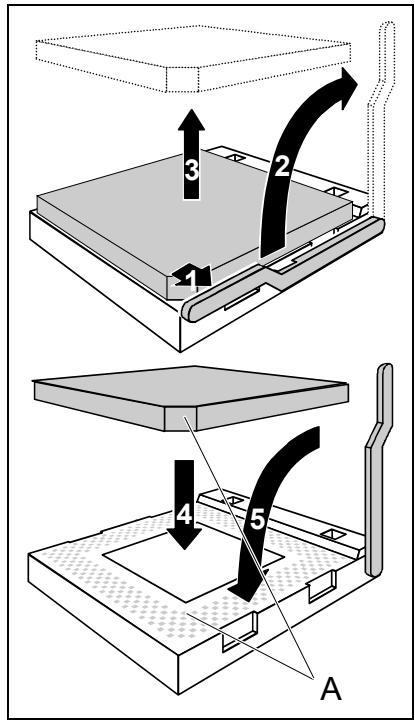
Pull the lever in the direction of the arrow (1) and lift it as far as it will go (2).
Fold up the frame.
Remove the old processor from the socket (3).
Insert the new processor in the socket so that the angled corner of the processor matches the coding on the socket (A) with regard to the position (4).

The angled corner of the processor can also be at a different location than shown in the illustration.
Push the lever back down until it clicks into place (5).

Please note that, depending on the heat sink used, different heat sink mounts are required on the mainboard.
Depending on the configuration variant, you must pull a protective foil off the heat sink or coat the heat sink with heat conducting paste before fitting it.
Depending on the processor variant, clips may also be supplied for mounting the heat sink that fix it in place.
Installing/removing or replacing main memory
Technical data
Technology: DDR2 400 / DDR2 533 / DDR2 667 and DDR2 800 unbuffered DIMM modules 240-Pin; 1.8 V; 64 Bit, without ECC
Size: 64 Mbytes to 8 Gbyte DDR
Granularity: 64, 128, 256, 512, 1024 or 2048 Mbyte for one socket
A current list of the memory modules recommended for this mainboard is available on the Internet at: www.fujitsu-siemens.com/mainboards.
At least one memory module must be installed. Memory modules with different memory capacities can be combined.

You may use only unbuffered 1.8V memory modules without ECC.
DDR memory modules must meet the PC2-3200U- or PC2-4200U- or PC2-5300U- or PCU2-6400U specification.

If you use more than one memory module, then make sure to distribute the memory modules over both memory channels. By doing this you use the performance advantages of the dual-channel mode.
Maximum system performance is achieved when identical memory modules are used in Channel A and Channel B.
To simplify equipping, the slots are colour coded.
When inserting the memory modules start with the slot located the furthest away from the processor (slot 4).
With a memory configuration of 4 Gbytes the visible and usable main memory can be reduced down to 3.5 Gbytes (depending on the system configuration).
More than 4 GByte main memory can only be used with a corresponding operating system.

| Number of inserted memory modules | ||||
| slot to be used | 1 | 2 | 3 | 4 |
| Channel A, slot 1 | X | |||
| Channel B, slot 2 | X | X | ||
| Channel A, slot 3 | X | X | X | |
| Channel B, slot 4 | X | X | X | X |
The installation/removal is described in the "Basic information on mainboard" manual.
PCI bus interrupts - Selecting correct PCI slot
Extensive information on this section is contained in the manual "Basic information on mainboard".

To achieve optimum stability, performance and compatibility, avoid the multiple use of ISA IRQs or PCI IRQ Lines (IRQ sharing). Should IRQ sharing be unavoidable, then all involved devices and their drivers must support IRQ sharing.
Which ISA IRQs are assigned to the PCI IRQ Lines is normally automatically specified by the BIOS (see "BIOS Setup" description).
Monofunctional expansions cards
PCI/PCI Express expansion cards require a maximum of one interrupt, which is called the PCI interrupt INT A. Expansion cards that do not require an interrupt can be installed in any desired slot.
Multifunctional expansion cards or expansion cards with integrated PCI-PCI bridge
These expansion cards require up to four PCI interrupts: INT A, INT B, INT C, INT D. How many and which of these interrupts are used is specified in the documentation provided with the card.
The assignment of the PCI interrupts to the IRQ Lines is shown in the following table:
| PCI INT LINE | Controller or slot INT | |||||||||||||
| On board controller | Mechanical slot | |||||||||||||
| USB 1.1 | USB 2.0 | IDE | SATA 0/1 | HD Audio | LAN | VGA | 1 | 2 | 3 | 4 | - | - | - | |
| PCI x16 | PCI x1 | 1 | 2 | - | - | - | ||||||||
| 1 (A) | X | - | - | X | X | - | - | - | - | B | A | - | - | - |
| 2 (B) | - | X | - | - | - | - | - | - | - | A | B | - | - | - |
| 3 (C) | - | - | - | - | - | - | - | - | - | D | C | - | - | - |
| 4 (D) | - | - | - | - | - | X | - | - | - | C | D | - | - | - |
| 5 (E) | - | - | - | - | - | - | - | - | - | - | - | - | - | |
| 6 (F) | - | - | - | - | - | - | - | - | - | - | - | - | - | |
| 7 (G) | - | - | - | - | - | - | - | - | - | - | - | - | - | |
| 8 (H) | - | - | - | - | - | - | - | - | - | - | - | - | - | |
| ID SEL | - | - | - | - | - | - | - | - | - | 21 | 23 | - | - | - |
| Dev# | 0Bh | 0Bh | 0Dh | 0Eh/0Fh | 10h | 14h | 05h | 02h | 03h | 05h | 07h | - | - | - |
| Function# | 0 | 1 | 0 | 0 | 1 | 0 | 0 | 0 | 0 | 0 | 0 | - | - | - |
| Bus# | 0 | 0 | 0 | 0 | 0 | 0 | 0 | 0 | 0 | 4 | 4 | - | - | - |
- with onboard Grafic
Use first PCI/PCI Express slots that have a single PCI IRQ Line (no IRQ sharing). If you must use another PCI/PCI Express slot with IRQ sharing, check whether the expansion card properly supports IRQ sharing with the other devices on this PCI IRQ Line. The drivers of all cards and components on this PCI IRQ Line must also support IRQ sharing.
BIOS update
When should a BIOS update be carried out?
Fujitsu Siemens Computers makes new BIOS versions available to ensure compatibility to new operating systems, new software or new hardware. In addition, new BIOS functions can also be integrated.
A BIOS update should always also be carried out when a problem exists that cannot be solved with new drivers or new software.
Where can I obtain BIOS updates?
The BIOS updates are available on the Internet at www.fujitsu-siemens.com/mainboards.
How does a BIOS update work?
You have two ways of doing this:
- BIOS update under DOS with bootable BIOS update floppy disk - brief description
Download the update file from out website to your PC.
Insert an empty floppy disk (1.44 Mbyte).
Run the update file (e.g. 2461103.EXE).
A bootable update floppy disk is created. Leave this floppy disk in the drive.
Restart the PC.
Follow the instructions on screen.

Detailed information on the BIOS update under DOS is provided in the manual on "BIOS Setup" ("Drivers & Utilities" CD).
- BIOS update under Windows with DeskFlash utility
A BIOS update can also be carried out directly under Windows with the DeskFlash utility. DeskFlash is contained on the "Drivers & Utilities" CD (under DeskUpdate).
Mainboard D2461

Remarques relatives aux cartes
Port microphone, rose

Entree audio (Line in), bleu ciel

USB - Universal Serial Bus, noir

Sortie audio (Line out), vert clair

VGA,bleu

AydnoBxOa (Line in), CBeTIO-cnHn
USB-Universal Serial Bus (yHnBepcaJIbHaN noCneIOBaTeJIbHaY shHa), cepHbI

AydnoobbixoD (Line out), cBeTNo-3eJIeHbI

VGA, CINHIN

PocneIOBATEbHbI INHTepFeic, 6nHIOBbI
Y Bac eTb DBe BO3MOXHOCTN:
1. 06HOBJIeHne BIOS B DOS npn nomoOni DnCKeTbI HauaJIbHOJ 3aRpy3Kn C 06HOBJIeHHoB BepCneBIOS -KpaTKoe OnncAHne
CkaaTe foan c 6OBHeHHoBepneHc hawero Internet-caTa Ha BaW kOMnIbOtep.
BCTaBbTe BINCKOBoN npCyTuO INCKeTy (1,44 M6).
3anyctnte paan c 6oHOBHeHHoB Bepcne (HaNPmep, 2461103.EXE).
Bydet co3daHa dIcketa HauJIbHO 3aRpy3Kn C o6HOBHeHHo BepCnei. OctabTe DnCKeTy B DnCKOBoJe.
Ipee3arpy3nte PK.
BbIIOJIHnIe yka3aHnIa, OTo6paKaIoUncIeNa HuaCnIee.
